> For the complete documentation index, see [llms.txt](https://ce-docs.keywordrush.com/llms.txt). Markdown versions of documentation pages are available by appending `.md` to page URLs; this page is available as [Markdown](https://ce-docs.keywordrush.com/ai-agents/turning-on-agent-access.md).
# Turning on Agent Access
Enable Agent Access and create the login your assistant will use — the one-time setup before connecting any AI.
This is a one-time setup. Once it's done, you can connect ChatGPT, Claude, or any other assistant in a couple of minutes.
### Step 1 — Enable Agent Access
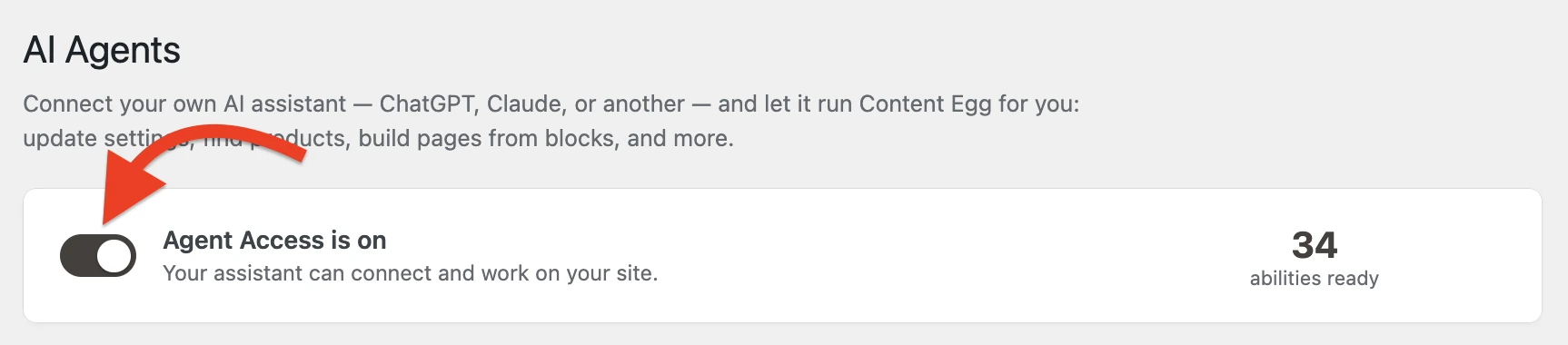
Go to **Content Egg → AI Agents**, tick **Enable Agent Access**, and click **Save**.
Content Egg → AI Agents — the master switch
That's the master switch. When it's off, no assistant can reach your site, no matter what password it has.
### Step 2 — Create an application password
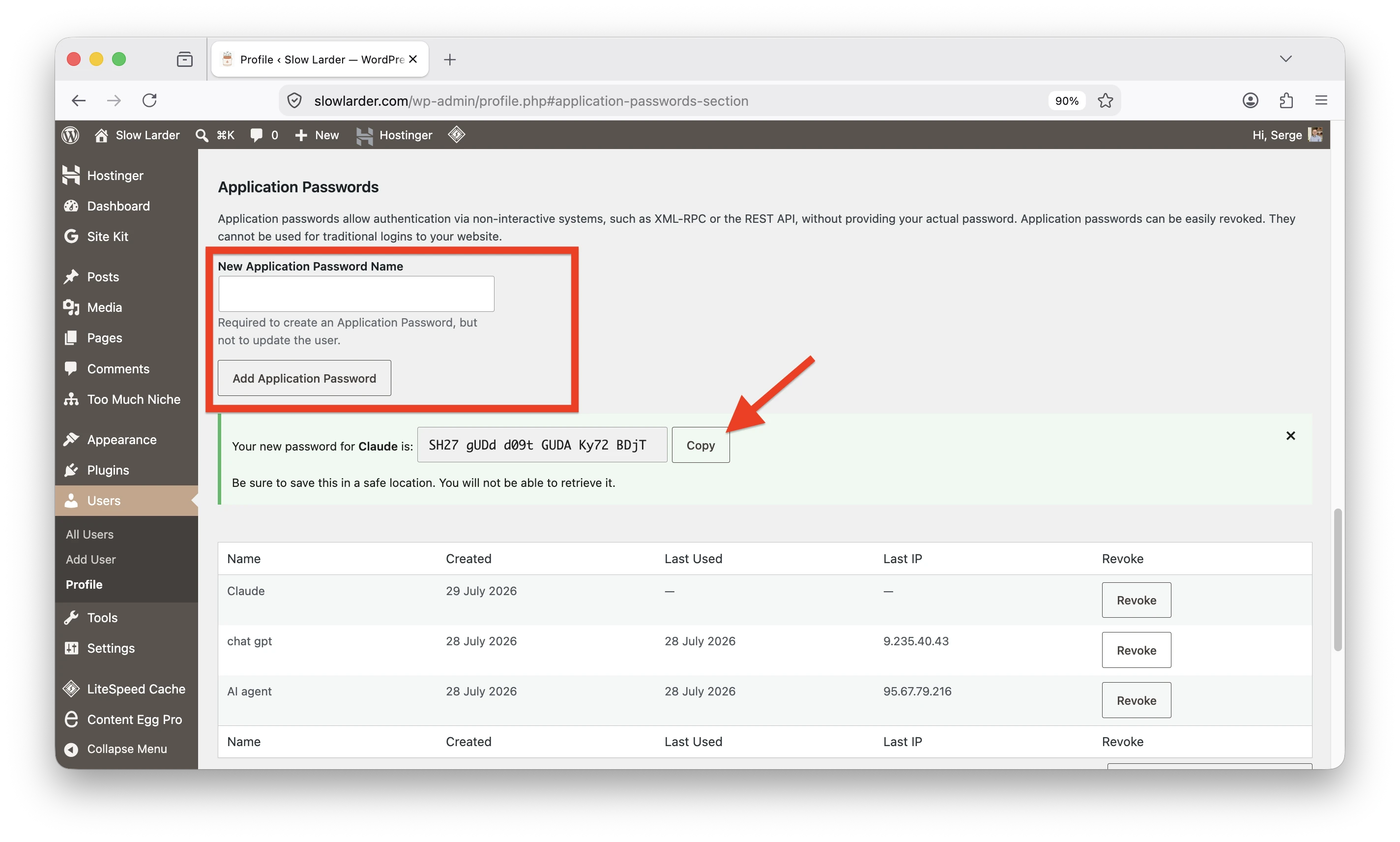
Your assistant logs in with a **WordPress application password** — a special password you generate once, separate from your normal login. On the AI Agents page, click **Create an application password** (it takes you straight to your profile), or go to **Users → Profile → Application Passwords**.
Give it a recognizable name, like `ChatGPT` or `Claude`, and click **Add New Application Password**. WordPress shows you the generated password **once** — copy it now and keep it somewhere safe. You'll paste it into your assistant in the next step.
Users → Profile → Application Passwords
{% hint style="info" %}
**Tip: make a dedicated user for your assistant.** Create a separate WordPress user (for example an Editor named "AI Assistant") and generate the application password for *that* user. Then everything your assistant does is clearly attributed to it in the activity log, you can limit exactly what it's allowed to do, and you can cut off access cleanly by deleting that one user — without touching your own account.
{% endhint %}
### Step 3 — Find your connection links
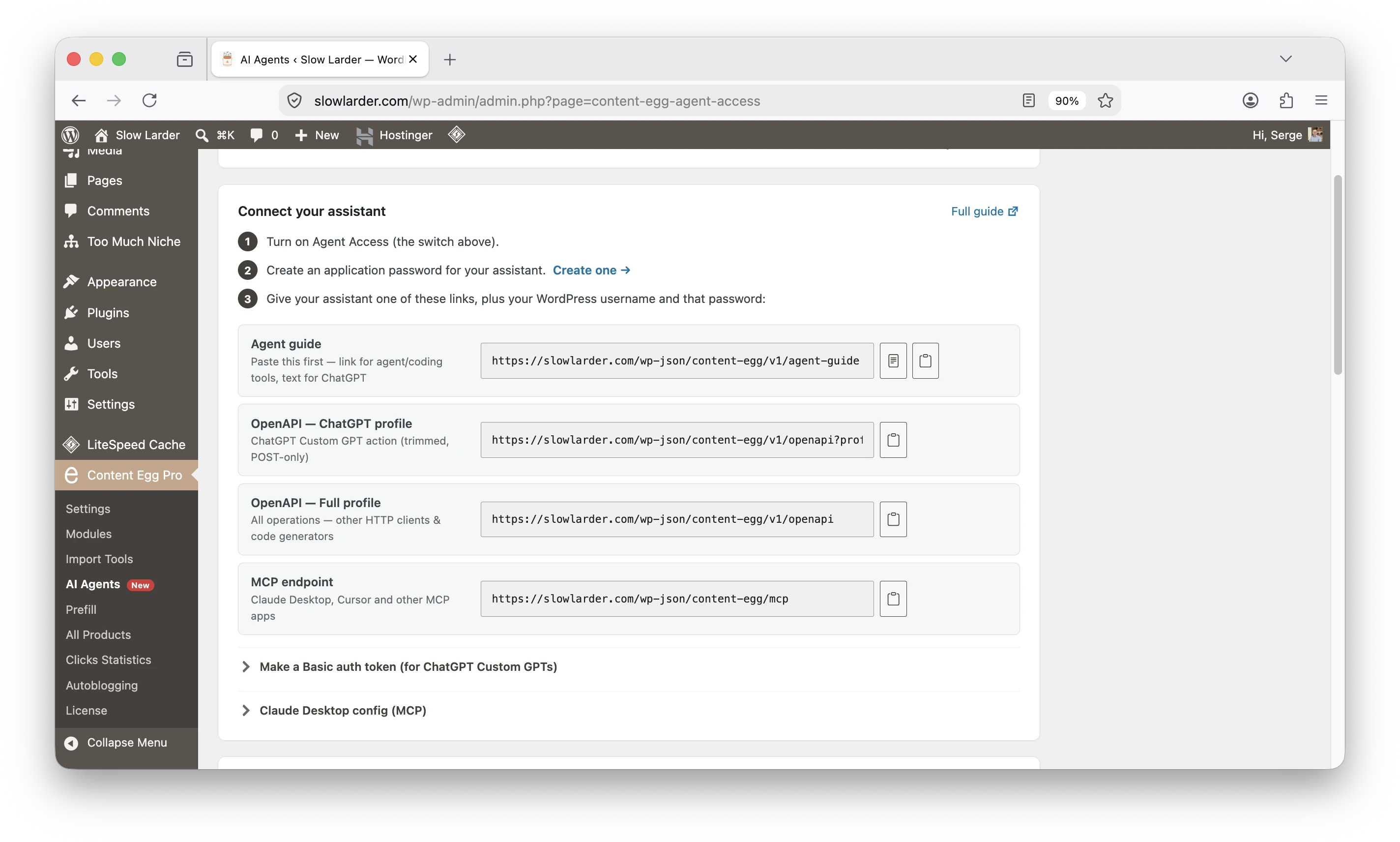
Below the switch, **Connect your assistant** has a tab for each assistant — **ChatGPT**, **Claude** and **Other tools**. Open the one you're using and it shows the short instructions and the exact links for that assistant:
* **Agent guide** — a plain-language playbook your assistant reads to learn your site's abilities and rules. Every tab has it, because every assistant needs it: the **text** for ChatGPT, the **link** for everything else.
* **OpenAPI — ChatGPT profile** — the action list for a ChatGPT Custom GPT (trimmed to fit ChatGPT's limits, POST-only).
* **OpenAPI — Full profile** — every operation, for other HTTP clients and code generators.
* **MCP endpoint** — optional, for Cursor and other MCP apps (it only appears when the free WordPress MCP Adapter plugin is active).
Your site's connection links, shown on the AI Agents page
You don't need all of them — your assistant's tab shows only what it uses. Keep this page handy; it's the source of truth for your site's exact links.
### The activity log
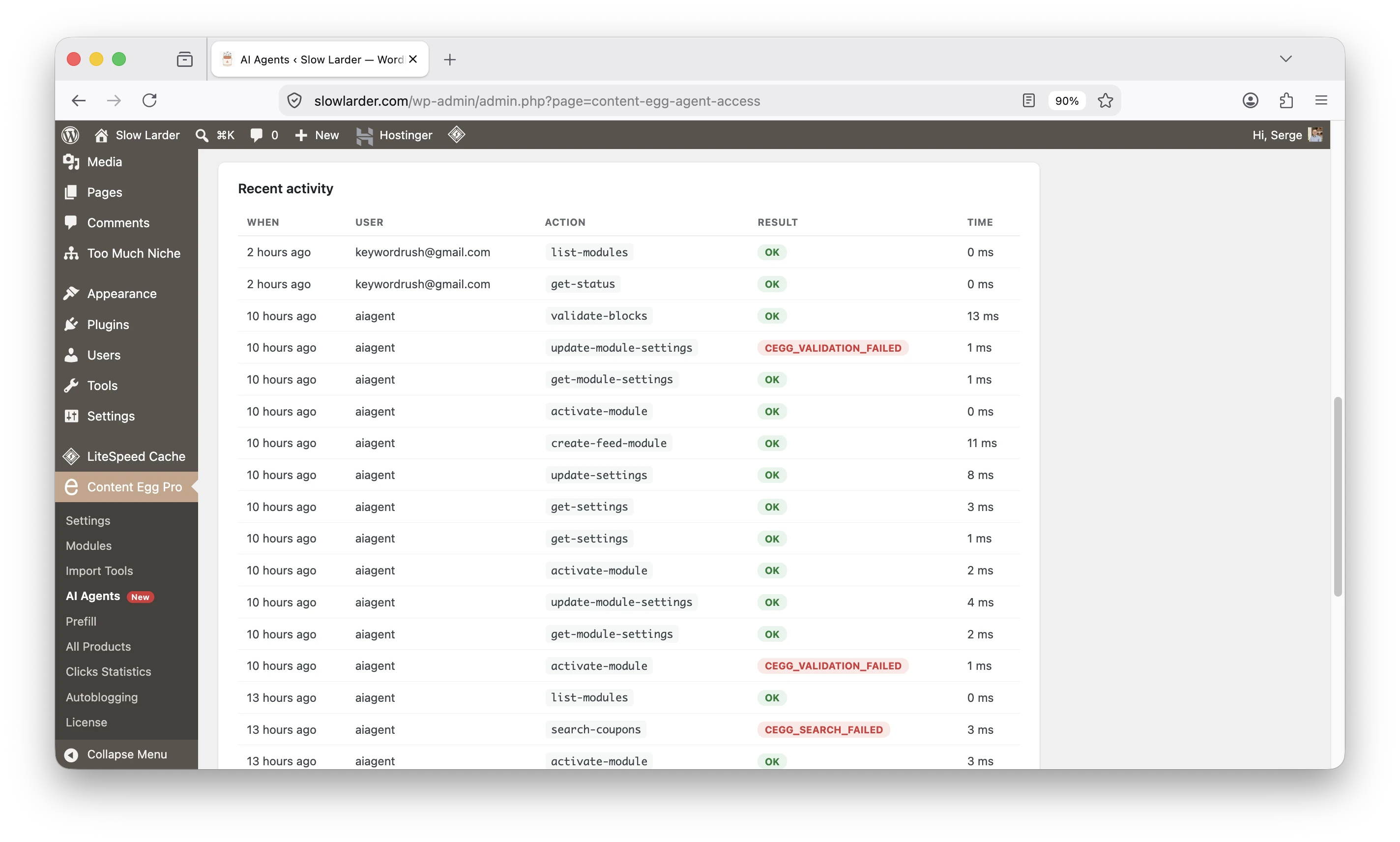
At the bottom of the page, **Recent activity** lists every action your assistant has taken — who did it, which action, when, and whether it succeeded.
Every action your assistant takes is logged
Nothing your assistant does is hidden. If you ever want to know what happened, this is where you look — more on staying in control in [**What your assistant can and can't do**](/ai-agents/safety-and-permissions.md).
### Next: connect your assistant
* [**Connect ChatGPT**](/ai-agents/connect-chatgpt.md)
* [**Connect Claude**](/ai-agents/connect-claude.md)
* [**Connect any other assistant**](/ai-agents/connect-other.md)