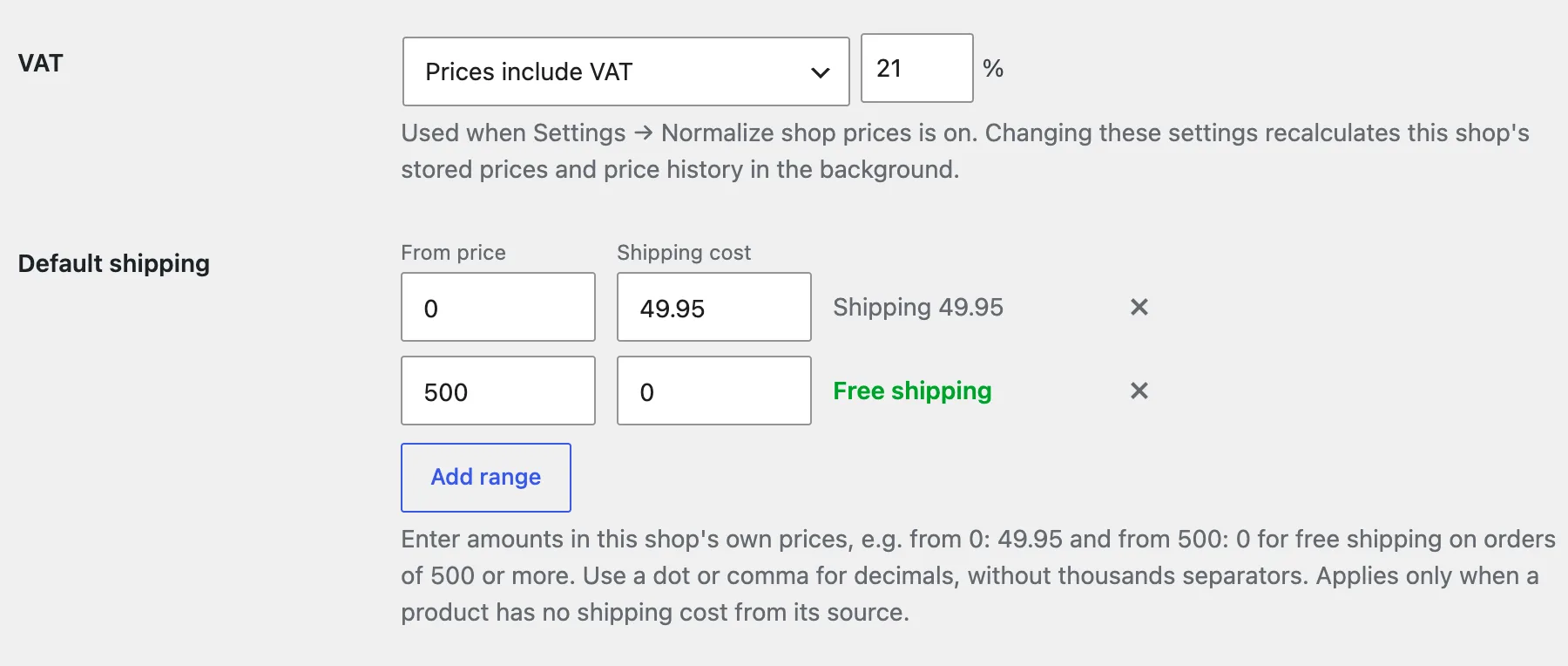
Shops & coupons
Give a shop a display name, a logo, or a coupon that appears beside its offers.
Content Egg finds shops in your product data automatically. Every offer already knows which shop it came from, so you never add a shop to make it work — the Shops screen is where you customize one that is already there.
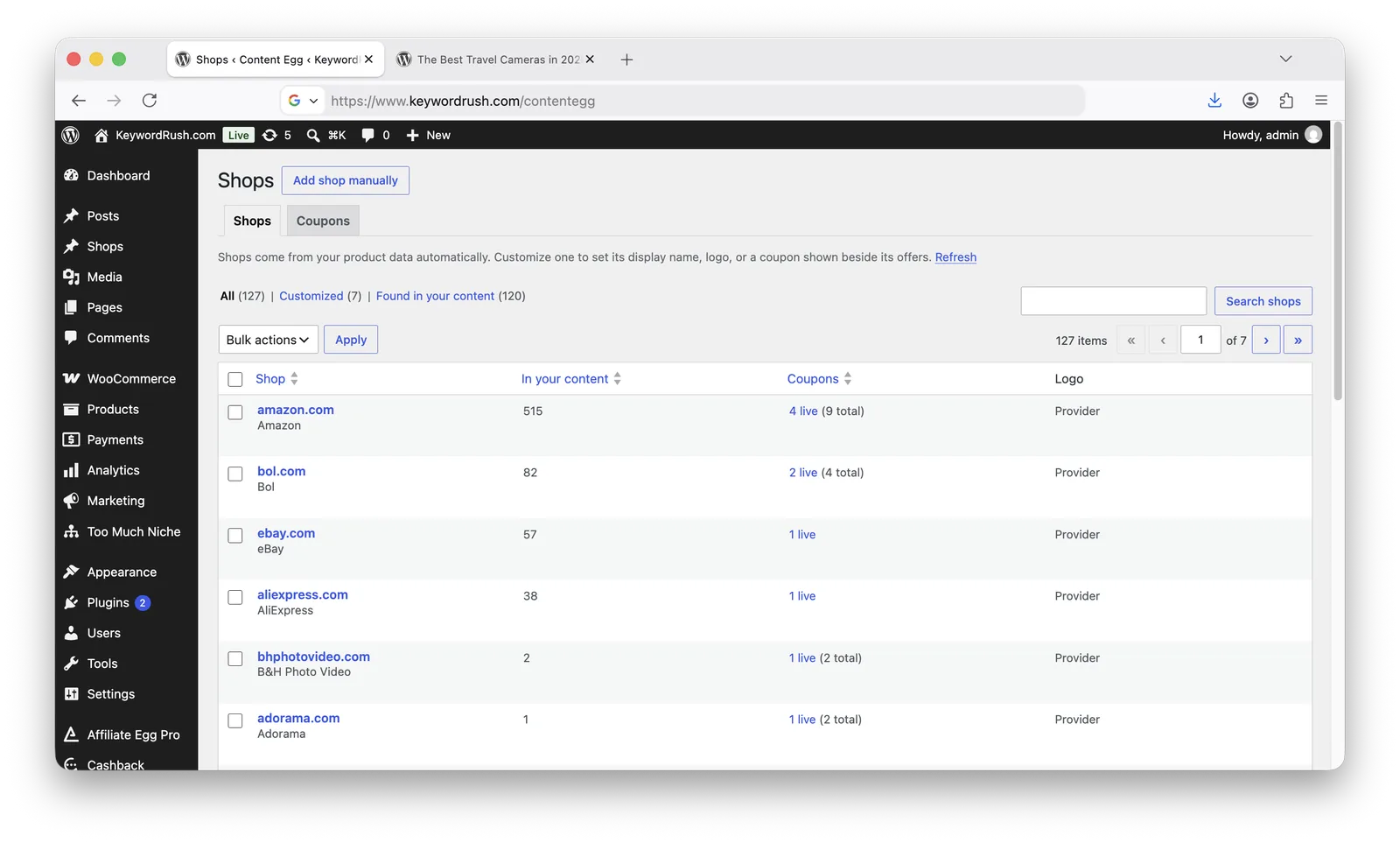
Open Content Egg → Shops.

Shop
The shop's domain, and its display name underneath if you set one.
In your content
How many product rows this shop appears in. Higher numbers are worth customizing first.
Coupons
How many of this shop's coupons are live right now, and how many it has in total.
Logo
Whether the shop uses a logo you chose, or the logo provider.
Shops are matched by domain, and matching ignores www. and any subdomain. You can paste a product URL into the domain field instead of typing the domain — both land on the same shop.
Customizing a shop
Click a shop, or Customize on one that has not been set up yet.
Display name — shown instead of the domain in templates and by the
%MERCHANT%tag.Logo — overrides the logo provider for this shop. Leave empty to keep using the provider. This is the fix when a provider stops returning a logo and a shop shows a blank space.
Shop info — appears in the shop-info popup where a template enables it.
Coupons — see below.
Renaming a shop's domain moves the record. If the new domain already belongs to another shop, the save is refused with a link to that shop, and nothing is overwritten.
Adding a coupon

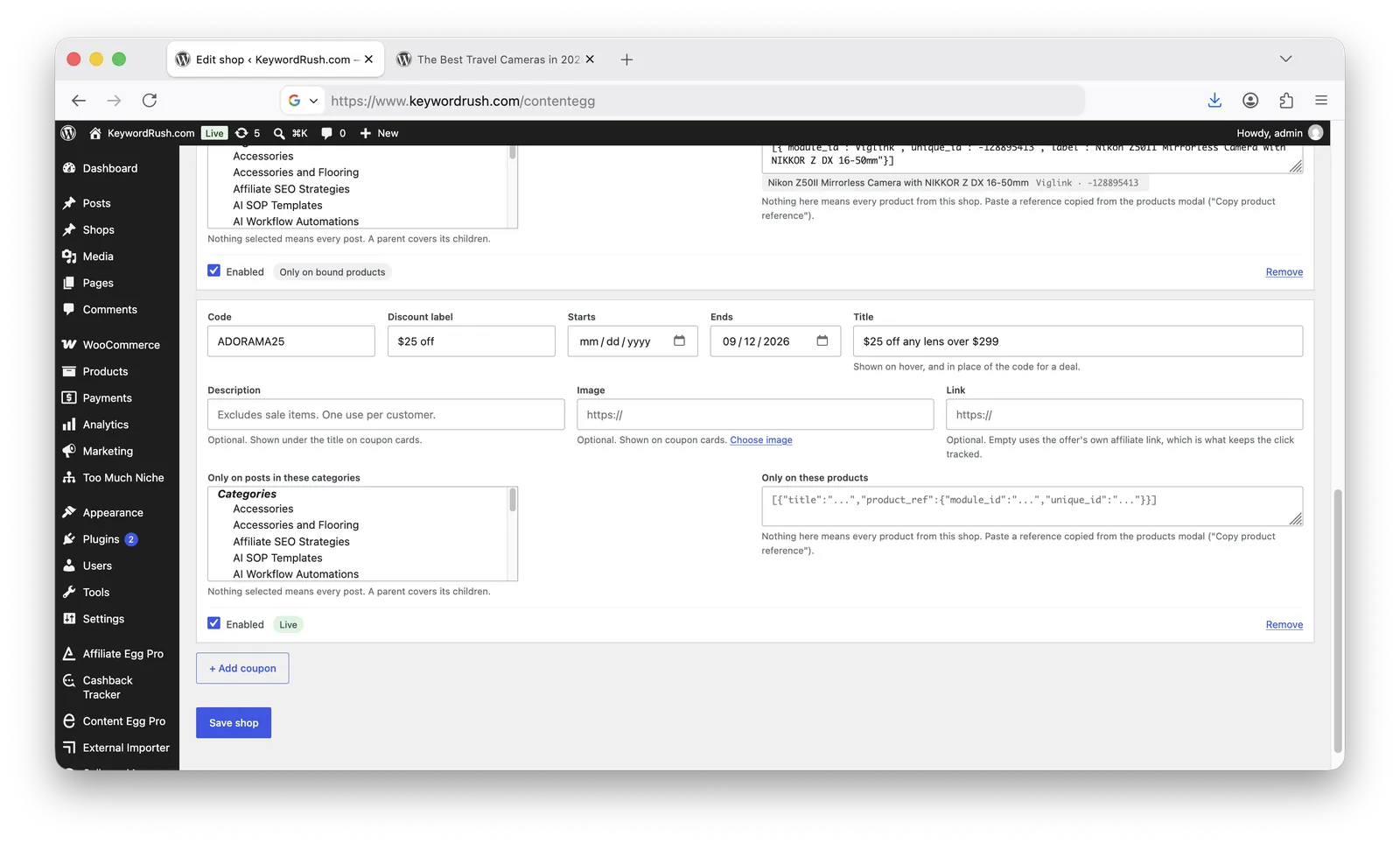
Code — for example
10%SUMMER. This is what a reader copies. Leave it empty for a deal: an offer that needs no code.Discount label — a short summary such as
10% off, shown beside the code and as a badge on cards.Starts / Ends — leave empty for no limit. Dates are your site's dates: a coupon ending 31 August works all day on 31 August.
Title — what the offer is, for example
10% off video games. Shown on hover over the chip, as the card's headline, and in place of the code for a deal.Description — optional, longer. Shown on cards behind a See details toggle, so a long one does not make the list unreadable.
Image — optional artwork for this offer, shown on cards. Use Choose image to pick one from your media library.
Link — optional. Leave it empty and the coupon uses the offer's own affiliate link, which is what keeps the click tracked.
Only on posts in these categories / Only on these products — where the coupon applies. See Where a coupon applies.
Enabled — turn a coupon off without deleting it.
Every coupon row shows its own state, which is the fastest way to answer "why isn't my coupon showing":
Live
Enabled, in date, and rendering.
Scheduled
Its start date has not arrived yet.
Expired
Its end date has passed.
Disabled
The Enabled box is unchecked.
Only on bound products
Live, but limited to specific products, so it appears only where they do.
No code — hidden by the codes-only setting
It has no code, and Content Egg is set to show codes only.
Content Egg → Shops → Coupons lists every coupon across every shop, soonest to expire first, so you can see what needs attention without opening each shop.
How coupons appear
There are four ways a coupon can show up in a product block. Set the one you want in Content Egg → Settings → Shops, or per block with the coupons_display shortcode parameter.
Inside the offer row (default)
A small chip beside the offer it belongs to
Short codes and discount labels
In a strip above or below the block
A row of chips of their own, aligned right
Templates with no room for a chip
As coupon cards below the block
A full card per coupon
Long titles, images, and deals with no code
Not at all
Nothing
Blocks where a coupon would distract
Inside the offer row
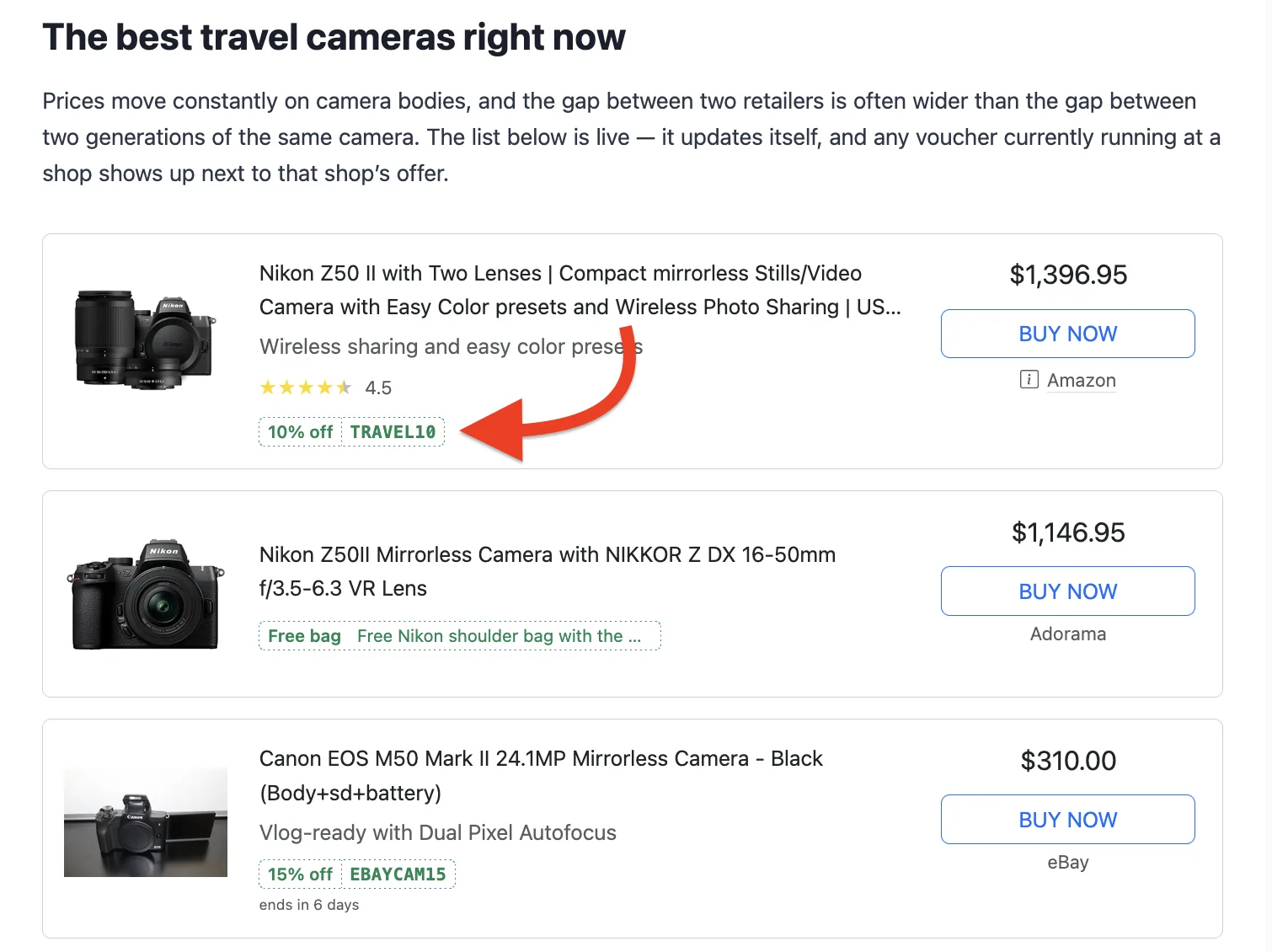
The coupon renders as a chip next to the offer from that shop:

One click copies the code and opens the shop — a single action for both jobs. An ends in 4 days line appears only when the end is close, and hovering shows the coupon's description, which is where a short chip cannot say what the offer applies to.
In a strip above or below the block
Templates that have no space for a chip — and any template you copied into content-egg-templates/ — do not show it inline. A strip puts the coupons in a row of their own instead, aligned right, above or below the block.
When the block contains products from more than one shop, each coupon in the strip is labelled with its shop so you can tell which offer it belongs to. When every product comes from the same shop the label would say nothing, so the space goes to the discount and the expiry instead.
As coupon cards below the block
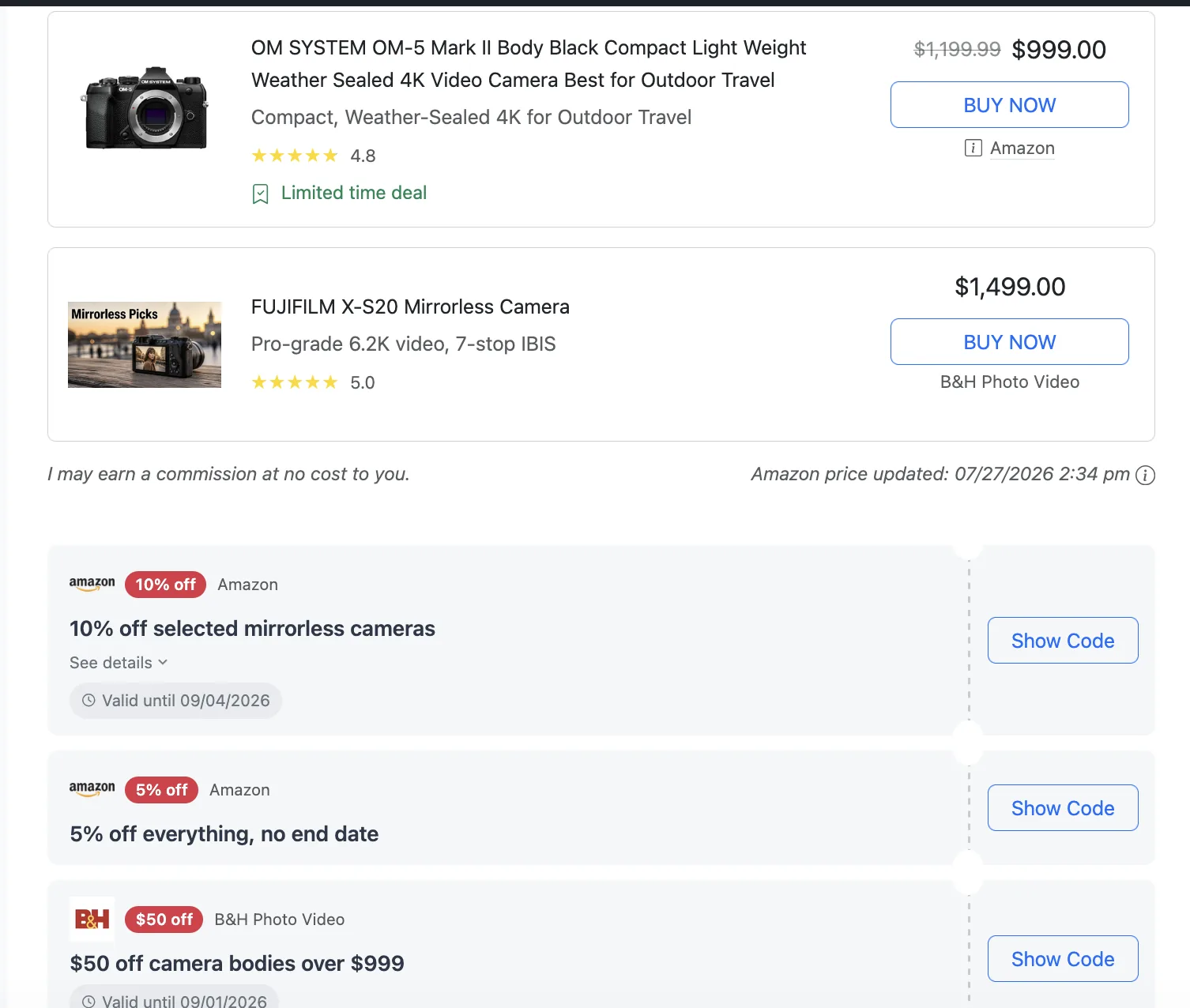
Each coupon becomes a full card rather than a chip. Use it when your coupons have more to say than a code — a long title, a description, an image, or no code at all.

A card shows the coupon's image, its discount badge, the shop, the title, See details for the description, the end date, and either:
Show Code — one click opens the shop and reveals the code, so the visit happens before the code is used. The code is copied to the clipboard at the same time, and clicking it again copies it once more.
Get deal — for a coupon with no code, since there is nothing to copy.
Which coupon wins
When a shop has more than one coupon that applies:
Coupons bound to the product being shown, before shop-wide ones.
Coupons you entered, before coupons from another source.
Coupons targeted at the reader's category, before site-wide ones.
The order they appear on the shop's edit screen.
A coupon you typed also suppresses an identical code arriving from another source, so the same code never appears twice.
There is no "biggest discount first" rule, because a discount label is free text (10%, 10 EUR, up to 50%) and cannot be compared reliably. Reorder the coupons on the shop to control which one leads.
Where a coupon applies
By default a coupon applies to every post and every product from its shop. Two fields narrow that, and they can be combined.
By category
A coupon with no categories applies to every post. Pick categories and it only appears on posts in them — a parent category covers its children, so choosing Gaming also covers Gaming → Nintendo.
Matching uses the categories of the post the reader is on, not the post the products were imported from. On a category archive, the archive's own category is used.
Post categories are a stand-in for product categories. A coupon valid only for video games is limited by putting it on your Gaming category — so a post filed in both Gaming and Movies will still show it. Choose categories that reflect where the coupon really applies.
Once you have selected categories, an Apply to all categories button appears next to the list; use it to clear the selection and make the coupon site-wide again.
By product
Some offers belong to one product rather than to the shop — a free T-shirt with one vinyl record for two weeks, a case with a phone, a bonus item with a game. Those are not shop-wide vouchers, and showing them beside every offer from that shop would be wrong.
Bind the coupon to the product instead:
Open the post the product is on and open the products modal.
On the Added tab, open the product row's ⋮ menu and choose Copy product reference.
Open Content Egg → Shops, pick the shop, and paste it into the coupon's Only on these products box.
The row then shows what it understood — the product's name and its ids. If it shows nothing, the paste did not contain a reference, and the page says so when you save.
You can bind one coupon to several products: paste the references for each, or use Copy all product references to take every product on a post at once.
A bound coupon is not tied to the post you copied it from — it follows the product, so it appears wherever that product is listed. Set an end date and the offer retires itself when the promotion is over, with nothing to remember.
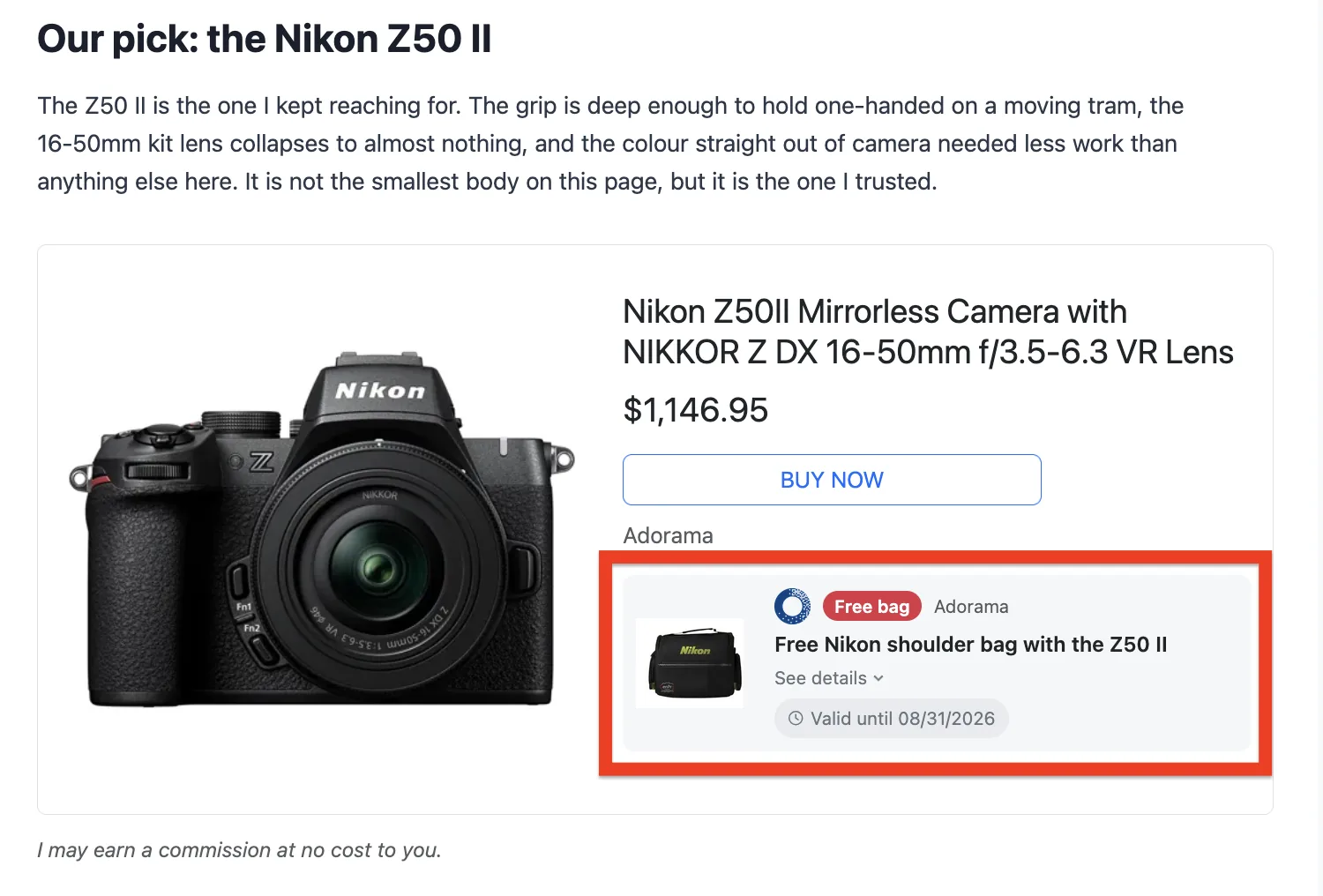
It appears only with its product, never beside the shop's other offers. In the Product card template it gets a card of its own inside the block, with room for a picture of the bonus item and a sentence explaining the offer:

That card carries no button of its own. A bonus with no code sends the reader to the same place the product's own button does, so a second button would only repeat it. It does get one when it has somewhere else to send them: Show Code when the coupon has a code, or Get deal when you filled in the Link field.
In a strip or as a card below the block, a bound coupon is labelled with the product's name instead of the shop's, and links to that product.
Settings
Content Egg → Settings → Shops:
Coupons in product blocks
Inside the offer row
Which of the four placements above to use.
Which coupons in the row and strip
Codes only
Whether coupons without a code (deals) appear there too. Coupon cards always show both.
Coupons per shop
1
How many coupons render beside one shop's offer.
Show "ends in N days" within
7
How close the end date must be before the expiry line appears. Set 0 to never show it.
Cashback Tracker coupons
Use them
Whether coupons imported by Cashback Tracker are shown alongside yours. Needs Cashback Tracker 3.0 or later.
Codes only is the default on purpose. A deal with no code adds a line next to a buy button that already links to the shop, without giving the reader anything they could not get by clicking.
That reasoning does not apply to coupon cards, where a deal is the whole offer with its own title and button, nor to a coupon bound to a product, which describes that product rather than the shop. Both show regardless of this setting.
Overriding per block
Both settings can be set on a single block, leaving the rest of the site alone:
coupons_display accepts inline, attached (strip below the block), attached_before (strip above it), cards (coupon cards below it) and off. Leave it out to use the setting.
To suppress coupons in a block without naming a mode, hide also works:
Coupons from Cashback Tracker
If Cashback Tracker is installed, the coupons it imports from your affiliate networks appear beside the same shops, with no setup beyond leaving Cashback Tracker coupons switched on. Matching is by domain, the same as your own coupons.
Two things are worth knowing:
Links keep their tracking. An imported coupon uses Cashback Tracker's own link, so a signed-in member's subid rides along and the click is credited to them.
Imported coupons apply to every post and every product that shop appears on. They carry no WordPress categories and no product bindings, so both are things you set on your own coupons.
Your own coupons always come first, and a code you entered by hand suppresses an identical code arriving from Cashback Tracker, so the same code never appears twice.
Network coupon feeds are mostly deals without codes, and some entries are generic ("Home page", "Smart links") rather than a real offer. Use coupon cards to render them, and expect to leave the default of one coupon per shop rather than showing everything a network returns.
Related
Last updated