> For the complete documentation index, see [llms.txt](https://ce-docs.keywordrush.com/llms.txt). Markdown versions of documentation pages are available by appending `.md` to page URLs; this page is available as [Markdown](https://ce-docs.keywordrush.com/modules/feed-modules/general-information.md).

# Adding a feed

Content Egg includes a dedicated module for working with product feeds in **CSV**, **XML**, or **JSON** format. This page covers adding one with the setup wizard, the feeds and URLs it supports, and how the feed keeps itself in sync afterward.

### The setup wizard

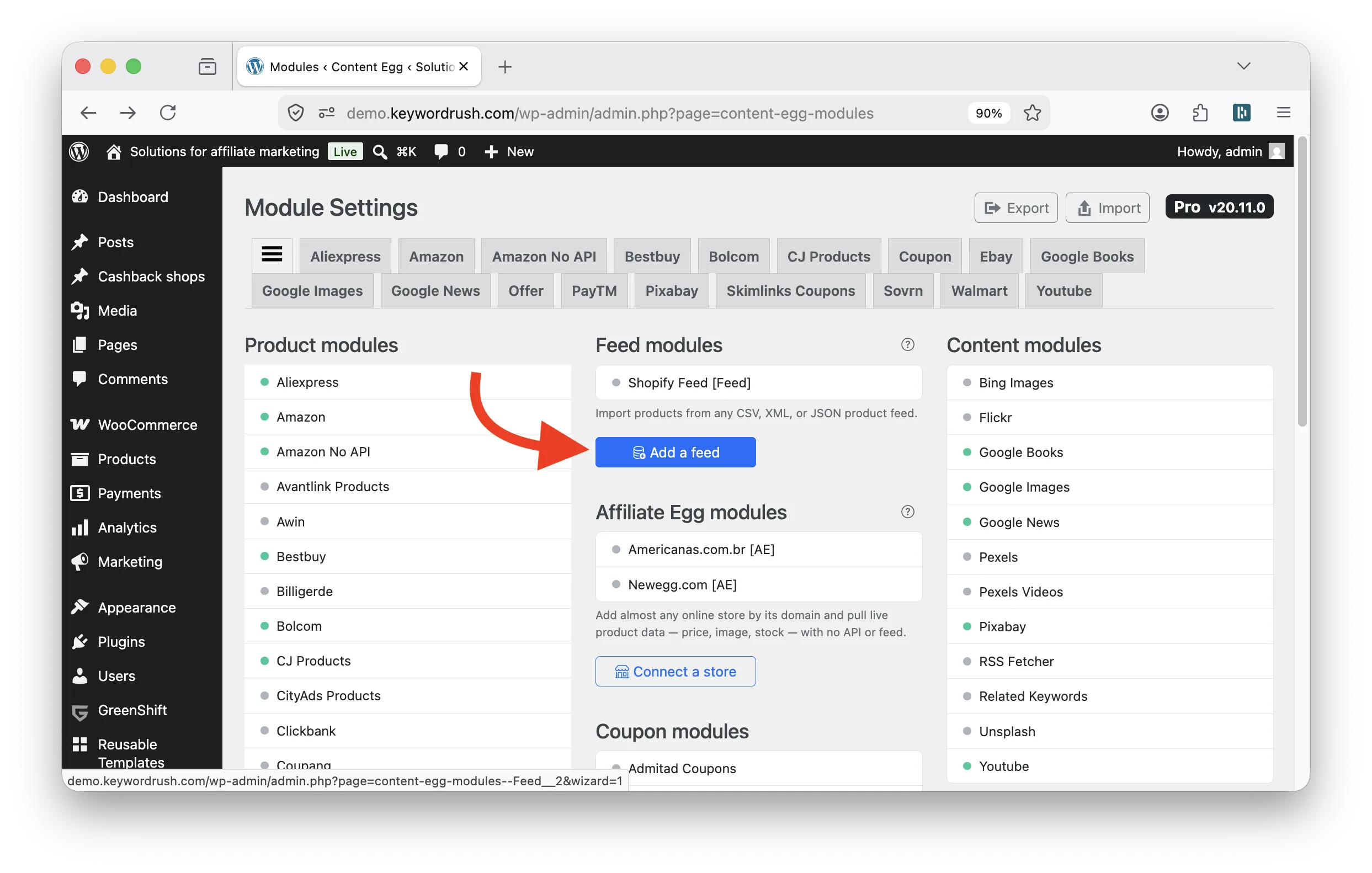
Go to `Content Egg > Modules` and click **Add a Feed** to open the setup wizard.

<figure><img src="/files/OusVhnRLECz4AZ7zAzer" alt=""><figcaption></figcaption></figure>

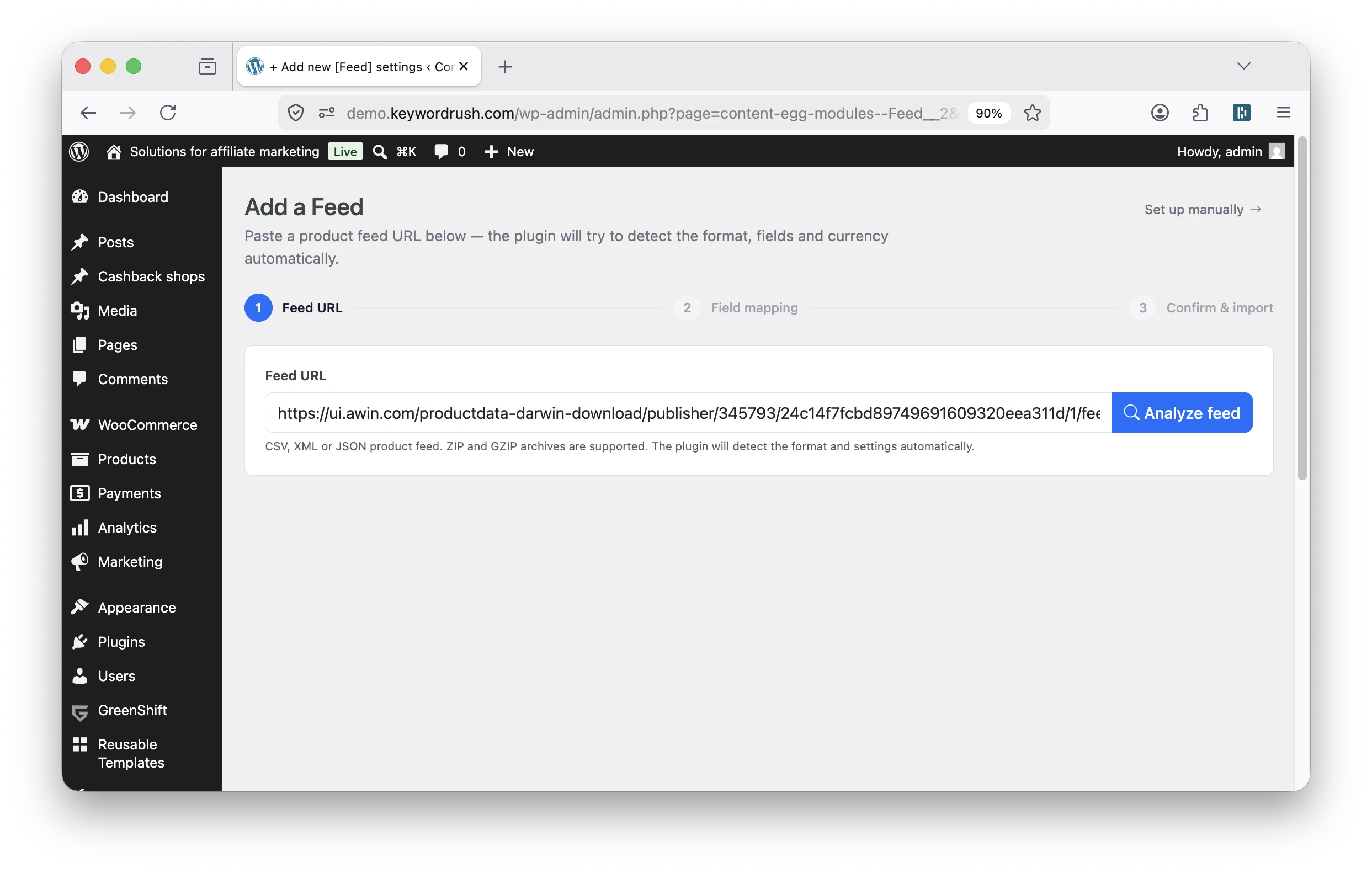
1. **Paste the feed URL.** That's the only thing you need to enter on this step. The wizard downloads a sample and automatically detects the format, encoding, currency, merchant domain, and CSV/decimal settings — you don't need to know any of this in advance.

<figure><img src="/files/C0CVKZjCQhLZ3mzF7YQK" alt=""><figcaption></figcaption></figure>

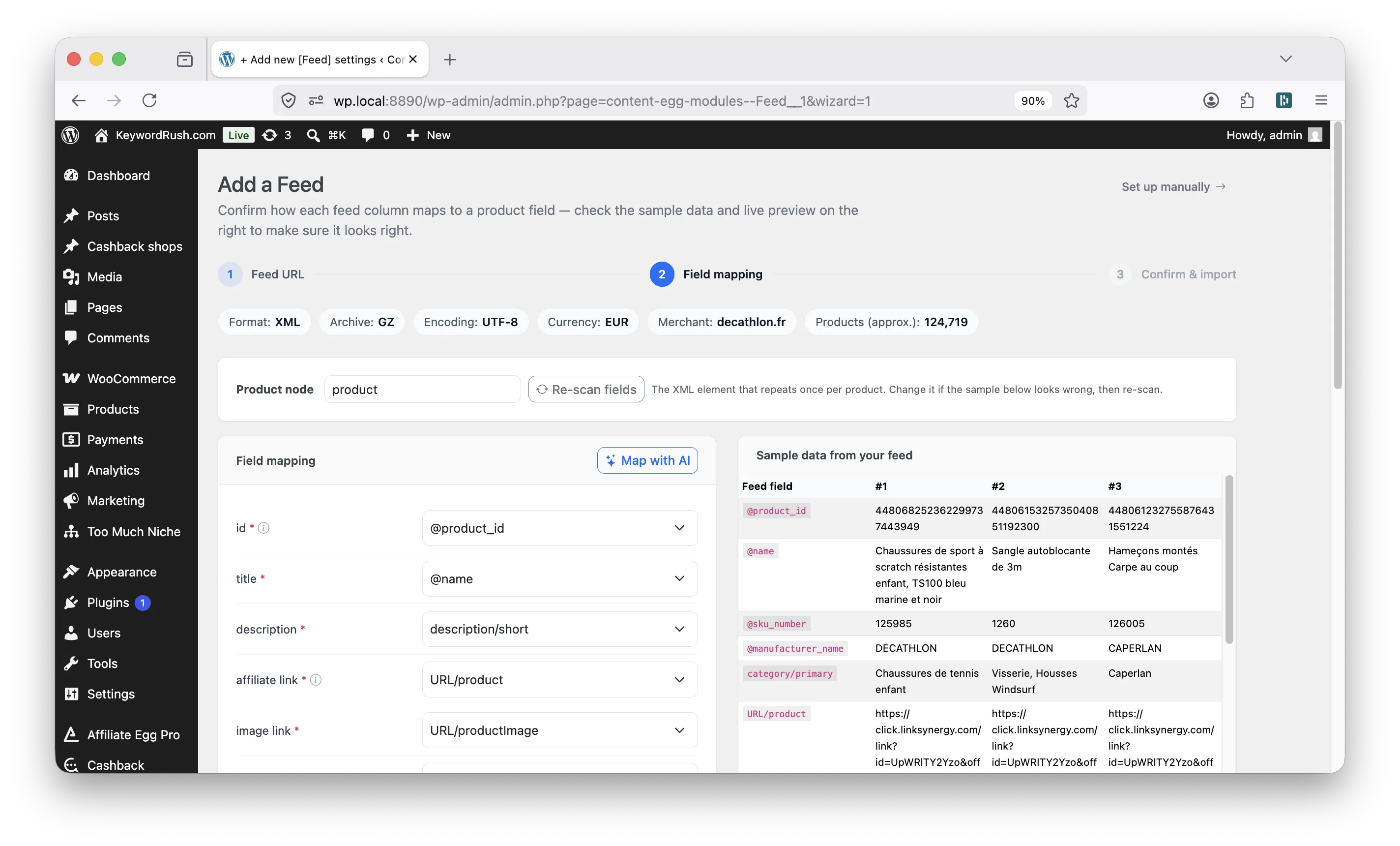
2. **Map the fields.** The plugin already fills in some of the mapping deterministically, based on common feed field names. Real sample rows from your feed are shown next to the mapping panel, along with a live preview of the first product, so you can confirm everything looks right. Click **Map with AI** to have the AI assign the remaining fields, or finish mapping any field manually.

<figure><img src="/files/ZjQYRhNEhSzFafQwsTHs" alt=""><figcaption></figcaption></figure>

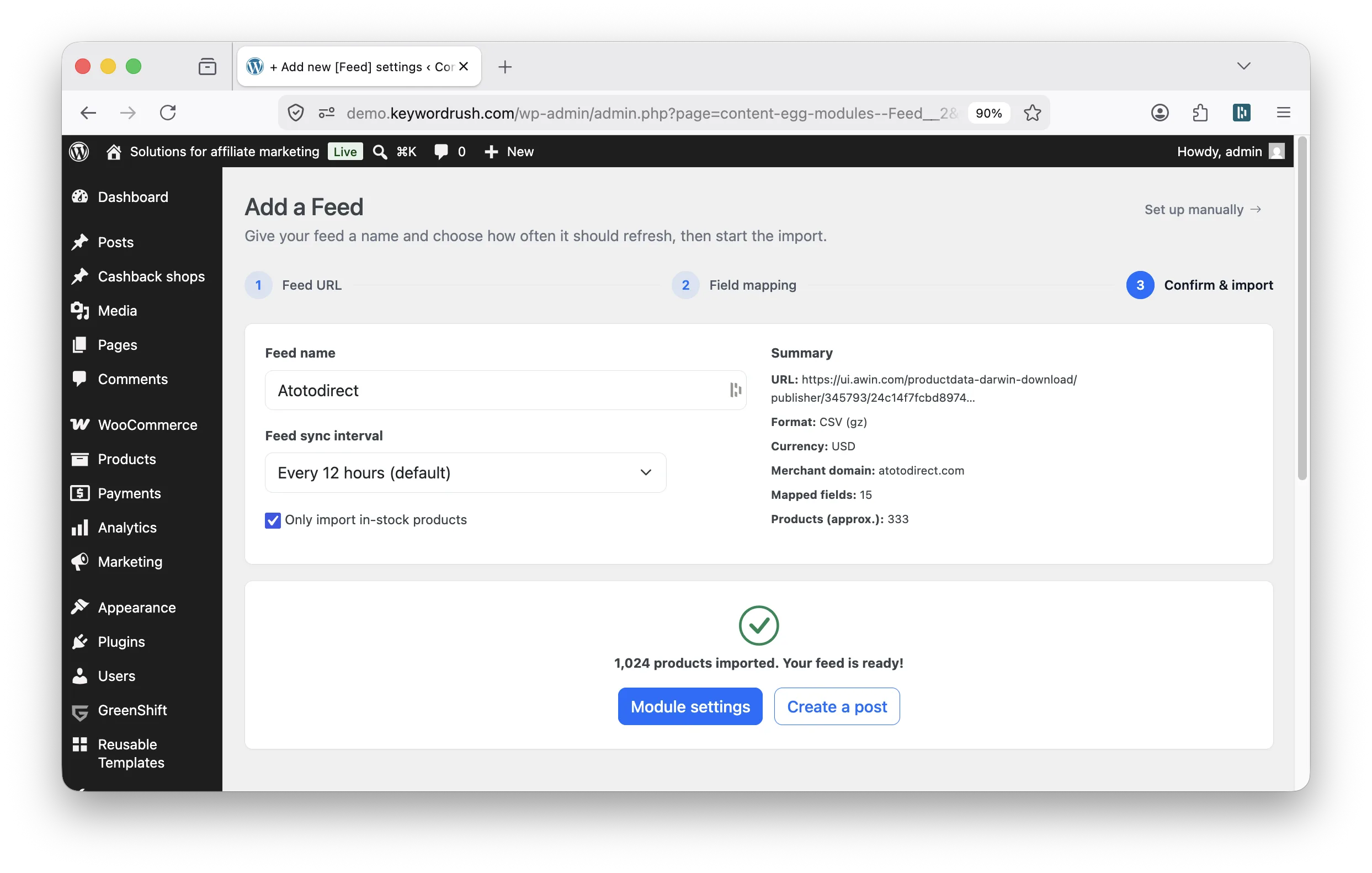
3. **Confirm and import.** Give the feed a name, choose how often it should sync, then click **Save & import products**. The import runs in the background with a live progress view, so you can leave the page and come back once it's done.

<figure><img src="/files/WB00mhWsJfYjxMWzQXmB" alt=""><figcaption></figcaption></figure>

{% hint style="info" %}
If the wizard can't detect your feed's parameters correctly, click **Set up manually** in the top-right corner of the page. This takes you straight to the classic module settings page, where you can enter every setting by hand.
{% endhint %}

{% hint style="info" %}
Once the import finishes, your products live in a local library, ready to use. See [where your products go](/modules/feed-modules.md#where-your-products-go-after-import) for what to do next.
{% endhint %}

### Supported feeds & URLs

* **Direct access**: The feed must be reachable at a direct, live URL — no login page or authorization step in front of it.
* **Formats**: CSV, XML, and JSON are supported. CSV is recommended when available, for better performance and simpler configuration.
* **Archives**: ZIP and GZ (GZIP) are supported. The wizard detects compression automatically; when setting up manually, select the matching **Archive format** option.
* **Protocols**: `http://`, `https://`, `ftp://`, and `ftps://` URLs are all supported.

{% hint style="warning" %}
To process **large** ZIP-compressed feeds, make sure ZIP support is enabled on your server.
{% endhint %}

<table><thead><tr><th width="247.16015625">Type</th><th>Example</th></tr></thead><tbody><tr><td><strong>HTTP / HTTPS</strong></td><td><p>http://www.example.com/data.csv</p><p>https://www.example.com/data.zip</p></td></tr><tr><td><strong>FTP (anonymous)</strong></td><td>ftp://ftp.example.com/path/to/feed.xml</td></tr><tr><td><strong>FTP (with login &#x26; password)</strong></td><td><p>ftp://user:pass@ftp.example.com/path/to/feed.xml</p><p>ftp://user:pass@aftp.linksynergy.com/12345_123456_mp.xml.gz</p></td></tr><tr><td><strong>FTP (encoded credentials)</strong></td><td><p>ftp://user:pass%40123@ftp.example.com/path/to/feed.xml.gz</p><p><code>(%40 = @, %3A = :, %2F = /)</code></p></td></tr><tr><td><strong>FTPS (secure FTP)</strong></td><td>ftps://user:pass@secureftp.example.com/path/to/feed.xml</td></tr></tbody></table>

{% hint style="warning" %}
In the Pro version you can enable up to **50** individual feed modules, and you can use merged feeds that combine products from multiple merchants (available in many affiliate networks). Avoid very large single feeds — splitting them keeps performance optimal.
{% endhint %}

### How syncing works

1. **Loading the feed file:** The feed file is downloaded to your server and cached. An unchanged feed is not re-downloaded or reprocessed on the next sync.
2. **Importing offers:** The plugin imports offers into the local database. Imports always run in the background, so saving settings or reloading a feed never blocks the page.
3. **Product search:** You can search feed products as you would in any other Content Egg module. If an import is still running, search shows a "please wait" message until it completes.
4. **Regular syncs:** By default, feed data is considered stale after 12 hours. The plugin re-syncs it in the background the next time that data is actually requested (e.g. someone views a page or admin screen using it) — not on a fixed clock. On a very low-traffic site, a refresh may take longer than 12 hours if nothing requests the feed in the meantime. You can change this interval (from every hour up to once a week) in the wizard's last step or in the module settings — both control the same **Feed sync interval** option.
5. **Adding more feeds:** Each feed is a separate module — repeat the steps above from `Content Egg > Modules`.

### Video walkthrough

{% hint style="info" %}
This walkthrough predates the current setup wizard, so the interface looks different — it's still a useful overview of the overall workflow.
{% endhint %}

{% embed url="<https://www.youtube.com/watch?v=dfs9ojO_OD8>" %}
