> For the complete documentation index, see [llms.txt](https://ce-docs.keywordrush.com/llms.txt). Markdown versions of documentation pages are available by appending `.md` to page URLs; this page is available as [Markdown](https://ce-docs.keywordrush.com/woocommerce/offers-count-badge-and-shortcodes.md).
# Offers Count (Badge & Shortcodes)
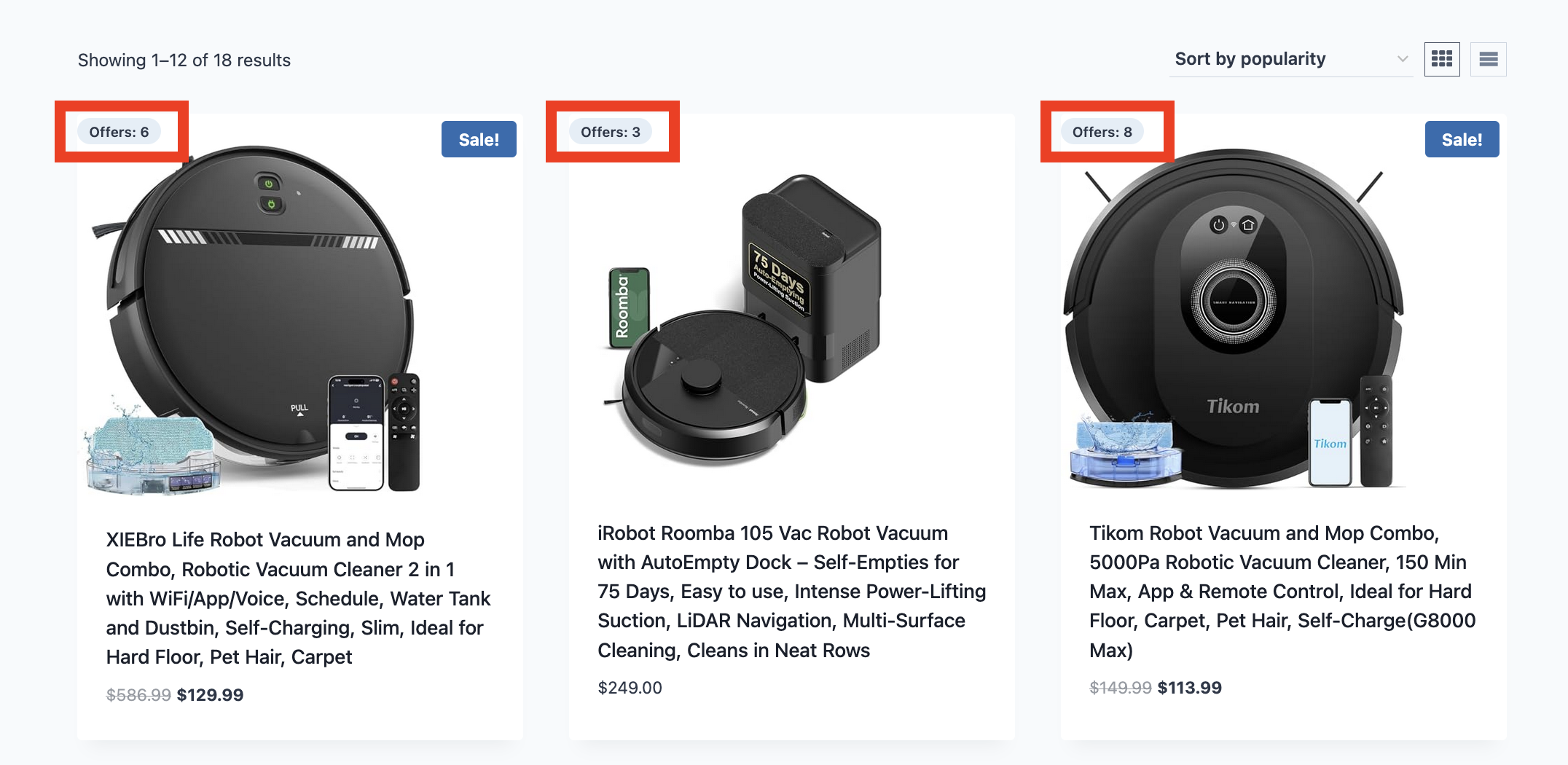
Content Egg can store multiple affiliate offers per post or WooCommerce product. The Offers Count feature displays how many offers are available, which is especially useful on archive and shop pages.
### What it does
* Automatically calculates the total number of offers for each post/product.
* Stores it so it can be displayed fast anywhere.
* Lets you show the number via:
* **Shortcode** (anywhere you can place shortcodes)
* **Badge output in WooCommerce loops** (shop/category/tag/search product grids)
{% hint style="info" %}
By default, **out-of-stock offers are not counted** (if the module provides stock status). This can be changed by developers (see below).
{% endhint %}
### Enable Offers Count badge for WooCommerce
1. Go to **Content Egg → Settings → WooCommerce**
2. Choose where the badge should appear: **Offers Count Badge Position**
Depending on your theme layout, you can display it in different places:
* **Before product title (near image)**
* **Inside product title area**
* **After title**
* **After product item (near button)**
* **Disabled** (no automatic output)
If your theme uses WooCommerce Blocks (product grid blocks), classic loop hooks may not apply. In that case, use the shortcodes below.
### Shortcodes
You can use these on posts/pages, in widgets, page builders, or anywhere shortcodes are supported.
#### 1) Offers count number
**Shortcode**
```
[content-egg-offers-count]
```
This prints a number like:
```
5
```
**Optional parameter**
* `post_id` — show count for a specific post/product
Example:
```
[content-egg-offers-count post_id="123"]
```
#### 2) Offers badge
**Shortcode**
```
[content-egg-offers-badge]
```
Default output example:
```
Offers: 5
```
**Parameters**
* `min` — minimum count required to show the badge (default: `1`)
* `label` — badge label text (default: `Offers`)
* `class` — CSS class for styling (default: `cegg-offers-badge`)
Examples:
Show only if there are at least 3 offers:
```
[content-egg-offers-badge min="3"]
```
Custom label:
```
[content-egg-offers-badge label="Deals"]
```
Custom CSS class:
```
[content-egg-offers-badge class="my-offers-badge"]
```
### How counting works
#### Which offers are counted?
* Offers saved by Content Egg (across all active modules) for the post/product.
* By default: offers with “out of stock” status are excluded (when stock status is available).
#### What about posts/products with no Content Egg offers?
* The badge/shortcodes will display **0** (count shortcode) or **nothing** (badge shortcode, because `min=1`).
* No badge is shown on WooCommerce archives if there are no offers.
### Styling the badge
#### WooCommerce badge styling
When enabled, the WooCommerce badge includes its own minimal styling. You can override it in your theme CSS:
Example:
```css
.cegg-offers-badge--wc {
background: #f2f2f2;
font-weight: 600;
}
```
#### Shortcode badge styling
Use a custom class:
```
[content-egg-offers-badge class="my-offers-badge"]
```
Then style it:
```css
.my-offers-badge {
display: inline-block;
padding: 2px 10px;
border-radius: 999px;
}
```
## Developer customization
This section is for developers who want to change how counts are calculated or where badges appear.
### Filters
#### Change the meta key used to store count
```php
add_filter('cegg_offers_count_meta_key', function () {
return '_my_custom_offers_count_key';
});
```
#### Include out-of-stock offers in the count
```php
add_filter('cegg_offers_count_include_oos', '__return_true');
```
#### Modify the final count
```php
add_filter('cegg_offers_count', function ($count, $post_id, $items) {
// Example: add 1 (not recommended, just demo)
return $count + 1;
}, 10, 3);
```
#### Customize badge HTML (shortcode + internal badge builder)
```php
add_filter('cegg_offers_badge_html', function ($html, $count, $post_id, $args) {
return '' . (int) $count . '';
}, 10, 4);
```
### WooCommerce-specific filters
#### Change where the badge is hooked in the loop
```php
add_filter('cegg_wc_offers_count_badge_hook', function () {
return 'woocommerce_after_shop_loop_item_title';
});
```
#### Adjust badge arguments used in WooCommerce loop
```php
add_filter('cegg_wc_offers_count_badge_args', function ($args, $post_id) {
$args['label'] = __('Offers', 'my-theme');
$args['min'] = 2;
$args['class'] .= ' my-wc-badge';
return $args;
}, 10, 2);
```
#### Change WooCommerce badge URL (if badge is linked)
```php
add_filter('cegg_wc_offers_count_badge_url', function ($url, $post_id, $product) {
return $url; // or change to a custom landing page
}, 10, 3);
```
#### Customize WooCommerce badge CSS
```php
add_filter('cegg_wc_offers_count_badge_css', function ($css) {
return $css . "\n.cegg-offers-badge--wc{ background:#e9f5ff; }";
});
```
### Troubleshooting
#### The badge shows nothing
* The post/product may have **0 offers**.
* For badge shortcode: `min=1` hides the badge when count is 0.
* Make sure Content Egg has already fetched/saved offers for the post/product.
#### WooCommerce badge doesn’t appear on my shop page
* Your theme may use **WooCommerce Blocks** (block-based product grids) where classic hooks don’t run.
* Use the **shortcode badge** in your product grid template, or switch the shop display to classic templates if available.
#### Counts seem outdated
* Counts update when Content Egg updates offer data for a post.
* If your site has many existing posts created before this feature, run the rebuild (or update offers on those posts).