> For the complete documentation index, see [llms.txt](https://ce-docs.keywordrush.com/llms.txt). Markdown versions of documentation pages are available by appending `.md` to page URLs; this page is available as [Markdown](https://ce-docs.keywordrush.com/set-up-products/import-tools/import-presets.md).
# Import Presets
**Import Presets**
Import Presets are reusable configurations that simplify and speed up your import workflow. They allow you to apply consistent settings across all import methods, including Search, Bulk Import, Feed Import, and Auto Import.
The plugin comes with several built-in presets that you can edit or duplicate as needed.
You can also enhance your imported content using AI:
* Select from built-in AI prompts
* Or write your own custom prompts to generate unique, helpful content tailored to your site visitors — for the post title and body, for extra content sections, or for SEO fields such as the meta description and focus keyword
**Access:**\
Content Egg > Import Tools > **Presets** tab
When you import via Search, Feed Import, Auto Import, or Bulk Import, simply choose the preset you want to apply.
### **Main Settings**
**1. Post Type**\
Choose the type of content to create:
* **Post** — Standard WordPress post
* **WooCommerce Product** — Requires WooCommerce to be installed
For WooCommerce products, you can choose between two product types:
* **External/Affiliate Product -** Customers are redirected to the merchant’s website via your affiliate link. Products cannot be added to the cart on your site.
* **Simple Product -** A standard WooCommerce product.
{% hint style="info" %}
To automatically synchronize product images and prices with WooCommerce, go to Content Egg → Settings → WooCommerce. Ensure that the required modules are enabled under the "Automatic Synchronization Modules" section.
{% endhint %}
**2. Categories**\
Where imported products are filed. Four settings work together, and the importer stops at the first one that produces a category:
* **Default Category** / **Default Woo Category** — the fallback, used when nothing else applies. Which one is shown depends on the Post Type above.
* **Dynamic Categories** — what to do with a product whose category you have not mapped:
* **Do not create** — send it to the default category
* **Create category** — create the merchant's category as a single level
* **Create nested categories** — recreate the merchant's full path, such as `Home > Bathroom > Storage`
* **Category Mapping** — send a merchant's feed category to one of your own categories, so products arrive filed correctly instead of needing cleanup afterwards.
Each mapping row takes the category as it appears in the feed on the left, and one of your existing categories on the right. A merchant's `Bathroom Storage` can go to your `Tall Bathroom Cabinets`.
* Rules are checked top to bottom and the first match wins, so put specific rules above general ones.
* A rule can name the full path (`Home > Bathroom > Storage`) or just the last level (`Storage`).
* End a rule with `*` to match a whole branch: `Home > Bathroom*` covers everything beneath it.
* **Suggest categories from…** loads the real categories out of a feed module, so you can pick them from a list instead of typing. This is offered for feed modules only; for other modules, type the category yourself.
Mapping runs before Dynamic Categories, so a mapped product never creates a merchant category. Dynamic Categories only decides what happens to the products your rules did not match. If you pick a category in the Search or Bulk Import screen, that choice wins over both for that import.
{% hint style="info" %}
To keep your own category structure and never let merchant categories appear on your site, set **Dynamic Categories** to **Do not create** and add your mapping rules. Mapped products go to your categories, and everything else goes to the default category.
{% endhint %}
Category Mapping works with every import method, and with any module that provides a category for its products.
**3. Post Title Template**\
Use placeholders to generate dynamic post titles:
* `%AI.title%` — AI-generated title (set under AI-Powered Post Title)
* `%AI.content%` — AI-generated content snippet (set under AI-Powered Post Content)
* `%AI.your_prompt_name%` — the result of one of your own prompts (see Custom Prompts below)
* `%PRODUCT%` — Entire product object as JSON, including title, description, price, specifications, etc.
* `%PRODUCT.title%` — Product title
* `%PRODUCT.price%` — Product price
* `%PRODUCT.domain%` — Merchant domain
* `%PRODUCT.url%` — Product URL
* `%PRODUCT.ATTRIBUTE.attribute-name%` — Specific product attribute value
For the full list of supported placeholders, see [this link](/faq/placeholders-reference.md).
*Example:*
```
Buy %PRODUCT.title% for %PRODUCT.price% – %AI.title%
```
{% hint style="info" %}
**Pro Tip:**
Use `%SOURCE%` and `%SOURCE.%` placeholders instead of `%PRODUCT%`.
* `%SOURCE%` (and `%SOURCE.*%`) returns the original product data before AI-powered fields are applied.
* `%PRODUCT%` returns the data after AI-powered processing.
{% endhint %}
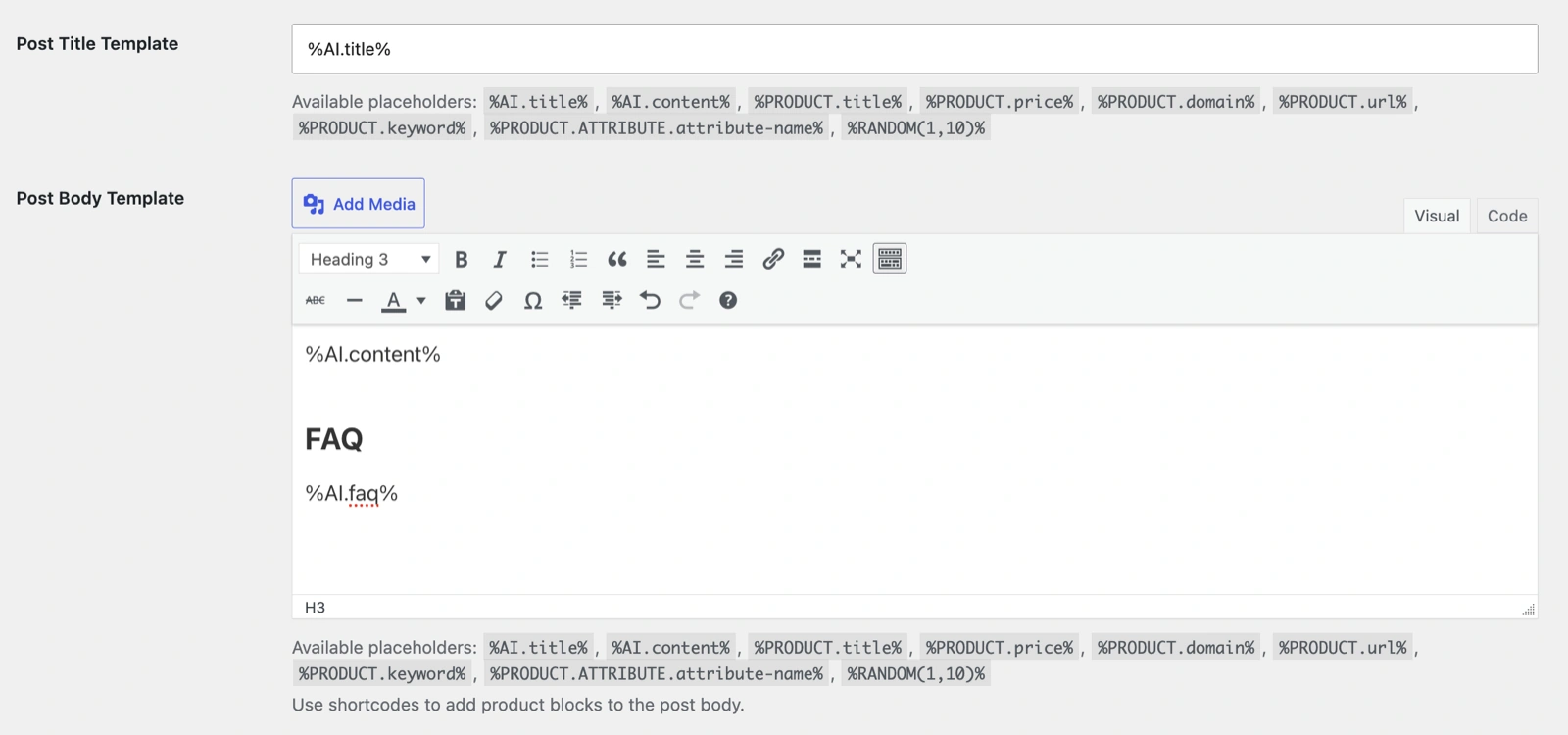
**4. Post Body Template**
Craft your content with the same placeholders as above, plus any Content Egg shortcodes to display product blocks.
*Example:*
```markdown
[content-egg-block template=review_box groups=ProductImport]
%AI.content%
```
{% hint style="info" %}
**Pro Tip:** Imported products are automatically assigned to the `ProductImport` group. Use `groups="ProductImport"` in your shortcodes to display only those items.
{% endhint %}
**5. AI-Powered Product Fields**
Enhance raw product data by generating short titles, subtitles, badges, ratings, and more.
1. Go to **Content Egg > Settings > AI** and enter your OpenAI API Key.
2. Enable the fields you want AI to generate.
**6. AI-Powered Post Title**
Select a predefined AI prompt to generate an optimized and relevant post title based on product data.
Choose a prompt that best matches the content type you're creating.\
For example, if you're generating a product review, select a **review-style prompt** for both the **title** and **content** to ensure consistency.
You can also use a **custom prompt** tailored to your specific needs.
{% hint style="success" %}
The generated title will be inserted using the `%AI.title%` placeholder in your **Post Title Template**.
{% endhint %}
**7. AI-Powered Post Content**
Choose a predefined AI prompt to automatically generate engaging and informative post body content based on the product data.
You can use this feature to create content such as:
* Product reviews
* Buyer’s guides
* How-to instructions
* Unique WooCommerce product descriptions
* And much more...
{% hint style="success" %}
Use `%AI.content%` in your Body Template to insert the generated content.
{% endhint %}
**8. Custom Prompts**
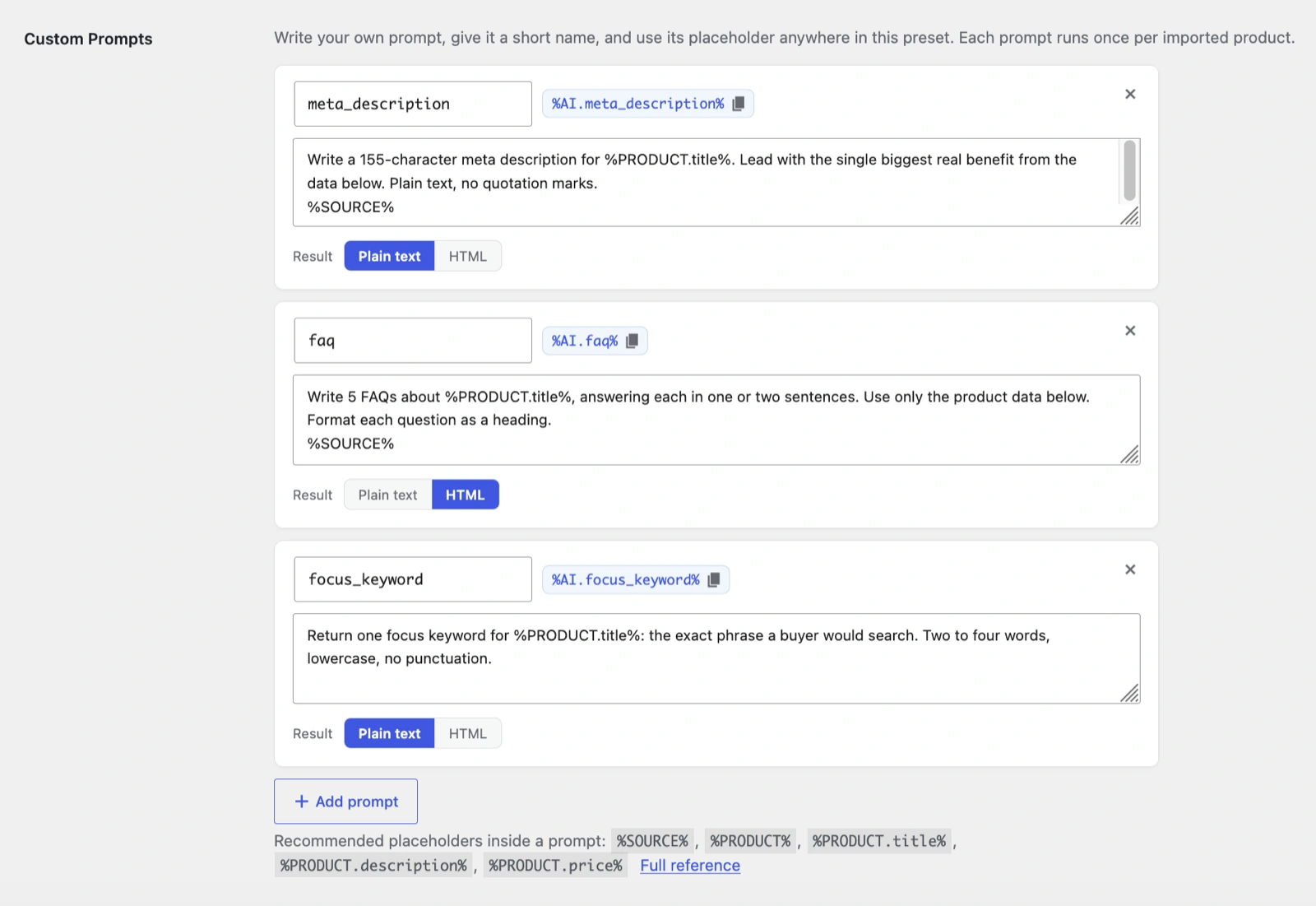
Write your own prompt, give it a short name, and use its placeholder anywhere in the preset. Add as many prompts as you need.
Each prompt has three fields:
* **Name** — a short name such as `meta_description`. It creates the placeholder shown next to the field, for example `%AI.meta_description%`. Use the copy button to copy it.
* **Prompt** — the instruction sent to the AI. Use placeholders like `%SOURCE%`, `%PRODUCT%`, `%PRODUCT.title%`, `%PRODUCT.price%` and `%PRODUCT.domain%` to pass product data. See the [full list of placeholders](/faq/placeholders-reference.md).
* **Result** — **Plain text** for values like a meta description or a keyword, **HTML** for content sections with headings, lists and tables.
Once a prompt is named, you can use it in three ways:
* Insert `%AI.your_name%` into the **Post Title Template** or **Post Body Template**
* Insert it into a **Custom Meta Field** value (see below)
* Pick it in the **AI-Powered Post Title**, **Post Content** or **Short Description** menus, where it appears as *Custom prompt: your\_name*
*Example — a meta description (Result: Plain text):*
```
Write a 155-character meta description for %PRODUCT.title%. Lead with the single biggest real benefit from the data below. Plain text, no quotation marks.
%SOURCE%
```
*Example — a product overview (Result: HTML):*
```
Write an overview of %PRODUCT.title% (priced at %PRODUCT.price%), highlighting its three best features in bullet points. Use only the data below.
%SOURCE%
```
Add `%SOURCE%` on its own line at the end whenever the answer has to state facts about the product — it passes the title, description, price, rating and specifications to the AI, so it writes from real data instead of guessing. Leave it out for purely wording tasks:
*Example — a title prompt:*
```
Make the product title exactly five words. Source: '%PRODUCT.title%'
```
{% hint style="info" %}
Each prompt runs **once per imported product**, and only when it is actually used — a prompt you have defined but not referenced anywhere costs nothing.
The same value is reused everywhere you reference it, so one prompt can fill several fields with a single AI request.
{% endhint %}
{% hint style="warning" %}
When a prompt is selected in the **Post Title**, **Post Content** or **Short Description** menu, that field's own formatting is applied and the **Result** setting is ignored. Post Content always expects Markdown from the AI.
{% endhint %}
**9. Custom Meta Fields**
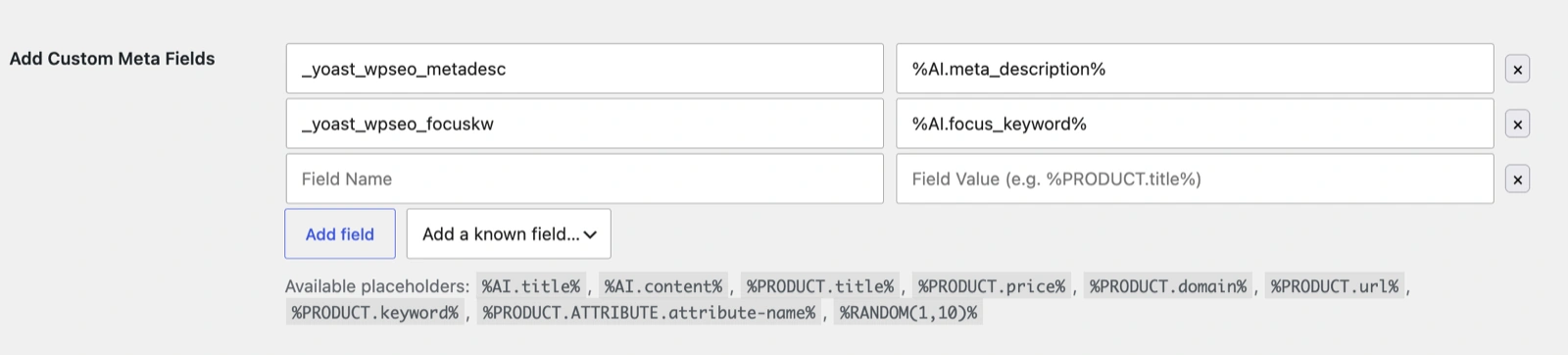
Save any generated value into a post meta field — most often the fields your SEO plugin reads.
Add a field, enter the meta key and a value, where the value can contain any placeholder:
| Field name | Field value |
| ----------------------- | ----------------------- |
| `_yoast_wpseo_metadesc` | `%AI.meta_description%` |
| `_yoast_wpseo_focuskw` | `%AI.focus_keyword%` |
If you don't know the exact meta key, use **Add a known field** and pick it from the list. Content Egg knows the fields for **Yoast SEO**, **Rank Math**, **SEOPress** and **The SEO Framework**, and shows the plugins installed on your site first.
{% hint style="info" %}
One prompt can feed several plugins at once — point both `_yoast_wpseo_metadesc` and `rank_math_description` at the same `%AI.meta_description%` and it is generated only once.
{% endhint %}
{% hint style="warning" %}
**All in One SEO** is not in the list. Since version 4 it stores titles and descriptions in its own database table rather than in post meta, so writing those meta keys would have no effect.
{% endhint %}
**10. Price comparison**\
Enable this option to automatically add the same product from multiple modules—allowing you to build a price comparison block within a single post or WooCommerce product.
This feature works only with modules that support EAN-based search (European Article Number), enabling the plugin to match identical products across different sources.
When price comparison is enabled, modules will be processed based on **priority**, which you can configure in the settings of each module. Higher-priority modules are searched first when matching products.
{% hint style="info" %}
Feed modules are the most exact source: they are searched by EAN in the catalog stored on your site. Sovrn (VigLink) is the only module that can also find offers from the product's URL, so it works even when the product has no EAN, and it doesn’t require individual advertiser approvals.
{% endhint %}
**11. Avoid Duplicates**\
Enable this option to automatically skip any product that’s already in the Import Queue or has been previously imported as a post or WooCommerce product.
**12. Use as Default Preset**\
Select this to make the current preset the default choice across all Import Tools.
### Supported Modules for Price Comparison
Price comparison searches every **active** module from this list. Modules that are not active are skipped.
**Feed modules.** Every feed module you have added (Feed, Awin, Webgains…). They are searched by EAN in the catalog stored on your site, so a search costs no API request.
**API modules**, searched by EAN:
* Amazon
* Amazon No API
* BestBuy
* Billigerde
* Bol.com
* CJ Products
* Clickwise
* eBay
* Geizhalsde
* Impact Radius
* Kelkoo
* Kieskeurig.nl
* Sovrn (VigLink), by EAN or by product URL
* Tradedoubler Products
* Tradetracker Products
* Trovaprezzi
* Walmart
Amazon, Amazon No API, BestBuy, Bol.com and Walmart return a single result per search (the best match). The other modules can return several. Only one Amazon module is used per product, and none is searched when the product itself came from an Amazon module.
The search stops once five offers have been found in total.
### Add Extra AI-Generated Content Sections
Content Egg lets you generate **extra AI-powered sections** in addition to the main post title and body content during import. You can use this to automatically create additional sections such as:
* Product Benefits
* FAQ
* User Tips
* Pros & Cons
* …or anything you define with a custom prompt
**1. Create a Custom Prompt**
In your Import Preset, under **Custom Prompts**, add a prompt and give it a short name such as `faq` or `pros_cons`.\
Each prompt should output only the section text you want (e.g. just the benefits list or FAQ block).
Set **Result** to **HTML** so headings, lists and tables are kept.
**2. Insert the Placeholder in Your Template**
Add the placeholder shown next to the prompt name into your **Post Body Template**, where you want the generated content to appear:
```markdown
%AI.content%
FAQ
%AI.faq%
Pros and cons
%AI.pros_cons%
```
Add as many sections as you need — there is no limit.
**Result**
When importing products, Content Egg generates each section and inserts it into the post according to your template layout.